-
Written By Eva Shirley
-
Approved By Shivam Rathore
-
Publish on June 16th, 2026
-
Reading Time: 5 minutes
Professional Guide to Convert MBOX to PDF Format in 2026

User Query: I have an MBOX file containing important email records and need to convert it into PDF format for archiving and sharing purposes. What is the most reliable way to convert MBOX to PDF while preserving email content, metadata, and attachments?
Summary: Email communication remains a valuable source of business records & legal documentation. When users transfer their MBOX files to PDF format, allows to preserve email content in an accessible and formatted document. Moreover, PDFs are widely accepted for different purposes, and that makes them a preferred choice for long-term record management. This guide explains the most effective methods to convert MBOX to PDF in 2026, which include Aryson MBOX Converter. It helps you to preserve structure and attachments throughout the process.
?
Quick Answer: What is the best way to convert MBOX file to PDF?
The best way to convert your MBOX to PDF depends on your requirements. However, Thunderbird is suitable to save a few emails as PDF files, while a professional MBOX Converter is ideal for bulk conversion, which preserves email metadata and attachments. It is particularly useful for Gmail Takeout exports, email archiving, and long-term record management.
Manual Method to Convert MBOX to PDF Using Thunderbird
It does not offer a direct option to convert our MBOX files into PDF format. However, you can accomplish the conversion process; first, you have to move the MBOX files into Thunderbird. Then save those emails as PDF through the Print feature.
|
Prerequisites
|
Step 01: Import MBOX files to Thunderbird
- You have to download & install Thunderbird on your system and open it.
- Thereafter, navigate to Tools >> Add-ons & Themes. Then search and install the ImportExportTools NG add-on.
- Afterward, restart your Thunderbird >> right-click on Local Folders.
- Select ImportExportTools NG >> Import MBOX File.
- Choose Import directly one or more MBOX files >> click on OK.
- Browse to the MBOX files >> select it >> import it into Thunderbird.
Step 02: Choose and convert them to PDF
- Open the imported mailbox folder and choose the email you want to convert.
- Double-click the email to view its contents.
- Click on the File >> Print (or press Ctrl + P) >> select Microsoft Print to PDF or Save as PDF.
- Select the destination >> click Save to export the email as a PDF file.
Drawback of the Manual Method
- There is no direct bulk conversion when export MBOX to PDF
- Each email must be saved individually, which takes a lot of time for multiple files.
- The attachments are not embedded within the PDF file.
- It required the Thunderbird and an additional add-on installation.
- Folder hierarchy and advanced email properties may not be preserved in the exported PDF files.
Method 02: Advanced Solution to Convert MBOX to PDF in Bulk
MBOX Converter is a solution designed to convert MBOX to PST, PDF, EML, and other formats. This software supports files created by Thunderbird, Apple Mail, and other email clients. It allows users to preview mailbox data and maintain folder hierarchy. The user can perform the selective conversion with the help of additional filters.
Most importantly, it supports the bulk conversion of MBOX files without any issues. It supports the export of MBOX emails directly to popular email services. Also, this software is compatible with macOS and can process Gmail Takeout MBOX files without requiring cloud uploads.
Working Steps to Save MBOX to PDF:
- Launch the MBOX Converter on your system and run it.
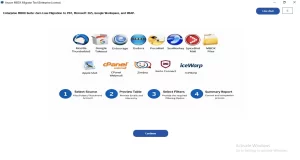
- Select Profile or Select File/Folder to load MBOX files >> Open.
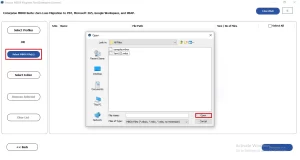
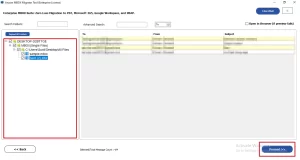
- After that, select the files from the list you want to move >> Proceed.
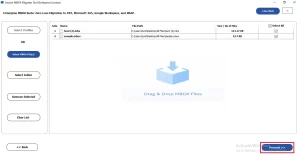
- You can preview the loaded .mbox files and click on Proceed.
- Thereafter, choose PDF from the Export File Format drop-down list.
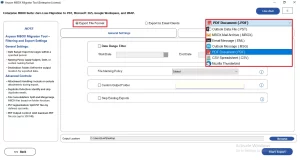
- Enable the filters as per you need, such as the Date Filter.
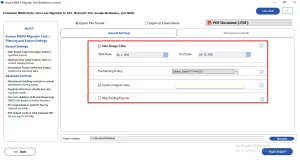
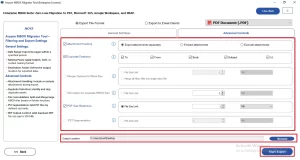
- Browse the resultant path to save the file and click on Start Export.
- When the conversion is finished, a pop-up window appears that says “All selected data has been exported successfully”.
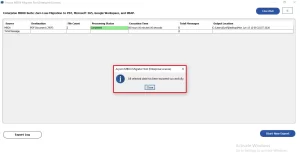
Note: You can view the Export Log report to view the detailed conversions.
MBOX Converter Vs Online MBOX Converter
| Feature | Aryson Mbox Converter | Typical Online MBOX Converters |
| File Size Support | It handles large MBOX files without any major limitations | Often restrict file size uploads |
| Batch Conversion | Support multiple MBOX files conversion at once | Usually limited or unavailable |
| Output Formats | PDF, PST, EML, MSG, HTML, DOC, CSV | Generally offers only a few output formats |
| Metadata Retention | Keeps To, From, Subject, Date, and other properties intact | Metadata depends on the services |
| Selective Conversion | It offers date filters and item selection options | Limited filtering capabilities |
| Platform Sustainability | Ideal for personal, business, and enterprise use | Primarily suitable for occasional conversions |
Conclusion
In short, users convert their MBOX files to PDF to preserve email communications. While Thunderbird offers a free method to convert individual emails to PDF. It takes a lot of time and is prone to attachment loss. Therefore, for users who need to convert large MBOX files and multiple emails at once, a professional solution is the reliable approach. It simplifies the process to convert MBOX to PDF, which make sure that data integrity and email metadata remain intact.
Frequently Asked Questions
Q1. Can I convert MBOX to PDF for free?
Ans. Yes, you can use the free demo version of the Aryson.in MBOX Converter to evaluate the conversion process. For complete and unrestricted conversion, you can upgrade to the licensed version.
Q2. Why would I need to convert MBOX to PDF?
Ans. PDF is a widely accepted format for email archiving, printing, sharing, and legal documentation. Converting MBOX emails to PDF ensures long-term accessibility without requiring an email client.
Q3. Can I export MBOX to PDF in bulk?
Ans. Yes, the Aryson.in MBOX Converter supports bulk conversion, allowing you to export multiple MBOX files and mailbox folders to PDF in a single operation while maintaining data integrity.
Q4. Is it possible to convert an MBOX file to PDF without losing attachments?
Ans. Yes, the Aryson.in MBOX Converter preserves email content, metadata, and attachments during the conversion process, ensuring complete and accurate PDF output.
Q5. What is the easiest way to convert MBOX to PDF?
Ans. The easiest method is to use the Aryson.in MBOX Converter, which provides a simple interface and step-by-step process to convert MBOX files to PDF without any complications.
Q6. Do I need any technical knowledge to convert MBOX to PDF?
Ans. No, the Professional MBOX Converter is designed for both technical and non-technical users. Its intuitive interface allows anyone to complete the conversion in just a few clicks.
About The Author:

Eva Shirley is a skilled technical content writer with expertise in creating engaging and informative content. With over 5 years of experience and a passion for writing, she has solved many users' queries by providing quality content.
Related Post