-
Written By Eva Shirley
-
Approved By Shivam Rathore
-
Publish on May 14th, 2026
-
Reading Time: 4 minutes
A Complete Solution to Import MSG to GoDaddy Fast & Easily

Summary: Importing MSG files into GoDaddy is a straightforward process when you follow the right steps carefully. MSG files are email formats created and used within Microsoft Outlook for storing messages. Most of the businesses and professionals rely on GoDaddy for managing their email communications. Moving your MSG data into GoDaddy requires a proper method to keep all information intact. This guide provides a clear and complete solution, along with discussing the professional Aryson MSG File Converter to import MSG to GoDaddy. Following these steps will save your time and protect your valuable email data.
Common Reasons to Import MSG File to GoDaddy Mail
- MSG files come from Outlook and carry full email data inside them.
- Moreover, GoDaddy is a popular email platform used by many small businesses.
- When you move MSG Emails to GoDaddy Mail, it keeps all your emails in one place.
- Most of the people switch platforms and need their old emails accessible quickly.
- Your attachments, contacts, and email threads stay safe during the move.
- Once imported, you can access all your old emails directly from GoDaddy.
Best Method to Import MSG to GoDaddy
There are many solutions available to accomplish the importation process. In this article, we will discuss the most appropriate method to complete the process.
- Drag and Drop Method
- Professional Method
Method 01: Manual Method to Migrate MSG Emails to GoDaddy (Drag and Drop)
You can easily import your MSG files into a GoDaddy email account configured with Microsoft Outlook using this method. This method is suitable for those users who want to transfer a small number of files without converting them into another format. Open MSG File in GoDaddy with the following steps.
Prerequisites
- Microsoft Outlook Installed
- GoDaddy configured in Outlook
- Stable Internet Connection
- MSG files stored in your system
Step 01: Open Outlook & Access GoDaddy Mailbox
- First, you have to open MS Outlook >> wait until the application connects to your GoDaddy mailbox.
- Then, you can verify that all your new emails appear in Outlook.
- Now, in the left navigation panel, locate your GoDaddy email account.
- Next, you need to expand the mailbox folders, such as the inbox, sent items, etc.
- Thereafter, choose the folder where you want to import the MSG files.
|
Create a new folder for better organization (optional) Right-click on GoDaddy mailbox >> select new folder >> enter a folder name >> press enter. |
Step 02: Open the Folder that contains MSG Files
- You just navigate to the location where the MSG files are stored.
- Afterward, you need to select the MSG files that you want to import into your GoDaddy account.
Step 03: Drag and Drop MSG Files into Outlook
- Now, drag and drop the selected MSG files, and then they will be directly moved to your GoDaddy account.
- In the end, Outlook will automatically synchronize all your emails with your GoDaddy server.
Disadvantages of the Manual Method
- It is not an ideal method for large-scale migrations.
- Importing thousands of MSG files can slow Outlook.
- There is a high chances of duplicate emails may appear.
- Requires Outlook installation and configuration.
- Risk of accidental data skipping during bulk drag-and-drop operations.
Method 02: Professional Software to Import MSG to GoDaddy
Choose this method if you want to import MSG files in bulk. MSG File Converter Tool minimizes the user’s effort and time to import data. This software is suitable for email clients as well to import MSG file into Hotmail, Office 365, etc. The user-friendly interface of this application makes the process easy for all users, including beginners.
Step Process to Convert MSG Files for GoDaddy
- First, launch the MSG File Converter Tool on your device.
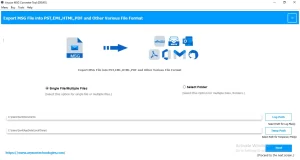
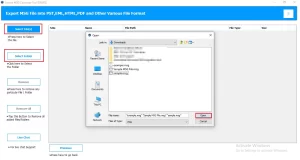
- Then, select the MSG files from your computer via the select file/folder option.
- After that, you can preview the mailbox files/folders along with attachments >> Next.
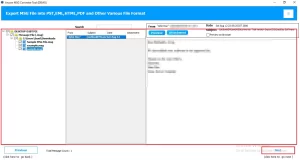
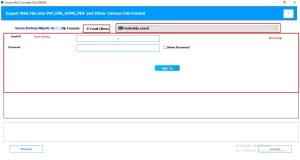
- Meanwhile, from the email client, choose GoDaddy as your output destination >> enter credentials.
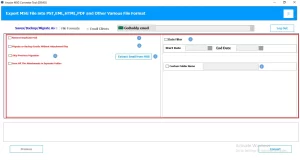
- Subsequently, apply the filters for selective data import from MSG to GoDaddy.
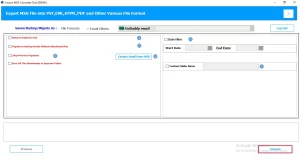
- In the end, click on the Convert button to begin the import process.
Conclusion
To wrap it up, the importation is important because you get centralized email management and smooth mailbox accessibility. In this blog, we covered all the aspects, which include a manual and professional method to complete the importation process. While the manual method is suitable for a small number of file transfers. As a result, it is recommended to use a professional method that provides a bulk importation along with security.
Frequently Asked Question
Q.1. Which is the most reliable MSG to GoDaddy migration tool?
Ans. A professional MSG migration tool with bulk import and attachment support is considered the most reliable option.
Q.2. How do I import MSG files with attachments into GoDaddy?
Ans. Configure your GoDaddy account in Microsoft Outlook and drag the MSG files into Outlook folders.
Q.3. Can I drag and drop MSG files into GoDaddy Mail?
Ans. Yes, Outlook allows you to drag and drop MSG files into GoDaddy mailbox folders.
Q.4 Is there a manual method to migrate MSG emails to GoDaddy?
Ans. Yes, you can use methods like drag-and-drop, PST import, copy-paste, or IMAP sync.
About The Author:

Eva Shirley is a skilled technical content writer with expertise in creating engaging and informative content. With over 5 years of experience and a passion for writing, she has solved many users' queries by providing quality content.
Related Post