-
Written By Eva Shirley
-
Approved By Shivam Rathore
-
Updated on May 26th, 2026
-
Reading Time: 4 minutes
Best Way to Import OLM to Google Workspace – Step-by-Step

Summary: In the year 2026, emails are important for daily work, but handling them can be difficult. Many Mac users keep their emails in Outlook OLM files. On the other hand, Google Workspace makes it easier to access emails from anywhere and work with a team. That’s why many people prefer to import OLM to Google Workspace. It helps them access emails and calendars more easily. The process may look complicated at first, but with the right method, it becomes simple and safe. In this guide, we’ll explain how to move OLM data to Google Workspace step by step, including the Aryson OLM file Converter Tool for a quick import.
Common Reasons to Move OLM Files to Google Workspace
The most common scenarios due to which users move their OLM files data to Google Workspace are given below:
- Google Workspace lets you access emails, contacts, and calendar without internet.
- The Google Workspace allows collaboration with Gmail, Google Drive, and Meet.
- Data stays safe in the cloud and does not depend on the local system like Mac Outlook.
- Moreover, it is easier to manage your data on the Google Workspace.
- It manages all emails under one domain instead of local Outlook profiles.
- When users move OLM data to Google Workspace helps to reduce storage on Mac.
Proven Methods to Import OLM to Google Workspace
For secure data migration, follow the most reliable approach as discussed below to accomplish the migration process.
- Manual Process
- Professional Software
Method 01: Manual Way to Import OLM Files into Google Workspace
You can move OLM files to Google Workspace manually, but the process is a bit long. It includes a few different steps.
Use IMAP Method to Proceed:
- First, sign in to your Google Workspace account.
- Then connect your Mac Outlook OLM file with your business Gmail account using IMAP.
- After that, create a new label in Gmail and start syncing the OLM emails.
- After syncing, you have to transfer the OLM data to the IMAP account.
- Next, export the IMAP mailbox data into a PST file.
- Once you have the PST file, you can upload it to Google Workspace.
- Download and install the Google App Migration Tool (GAMMO).
- After that, launch the tool, sign in to your Gmail account, >> continue.
- A new window will open. Click Continue again.
- Then, you have to select the “From PST File” option from the drop-down list.
- Select “Migrate all data” and click Next.
- Choose the required data and click Migrate to start the process.
- When it’s done, you’ll see a message saying “Migration Completed.” >> OK to finish.
Limitations of the Manual Method
- This method takes a lot of time and effort to migrate files.
- It is not possible to migrate multiple files through this method.
- During migration, there are chances of attachments or data loss.
- Moreover, you have to perform the same process multiple times.
Method 02: Professional Software to Import OLM to Google Workspace
The OLM Converter Tool is a simple way that allows users to move OLM files to Google Workspace. Moreover, this software lets you transfer OLM email to Google Workspace directly after logging in. You can remove duplicate emails or skip data that was already migrated. Moreover, you can preview your emails before you start the further process. Additionally, these feature helps to maintain the folder structure and data integrity without any loss.
Note: You can also use this software to import OLM file to Yandex Mail securely.
Simple Steps to Import OLM to G Suite (Google Workspace):
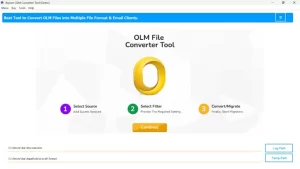
- To initiate the process, download the OLM Converter Tool on your Computer.
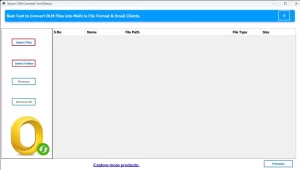
- Now, from the left panel, select file/folders to add an OLM file for migration.
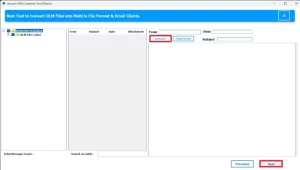
- After that, preview the files with attachments and click Next to proceed.
- Then, select Google Workspace as an output source from email clients.
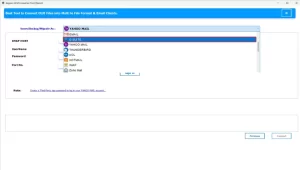
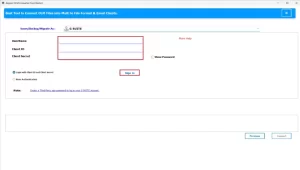
- Next, you have to enter the login details for Google Workspace.
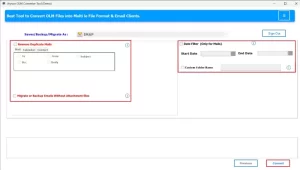
- At last, apply the filters and click on Convert to start the migration process.
Conclusion
In this blog, we have explored the different ways to import OLM files into Google Workspace. Although the manual technique may be suitable for small-sized files, it can become complicated and unreliable when handling large mailboxes. On the other hand, a professional automated solution simplifies the process, preserves email data along with the original folder structure, and reduces the chances of errors. Therefore, select the appropriate method for a smooth transfer.
Frequently Asked Question
Q.1. How can I move OLM files to Google Workspace safely?
Ans. Use OLM Converter to securely transfer OLM files with direct Google Workspace login.
Q.2. Can I import OLM to G Suite (Google Workspace) without data loss?
Ans. Yes, it migrates OLM files while preserving emails, folders, and metadata without data loss.
Q.3. Are attachments preserved when I transfer OLM email to Google Workspace?
Ans. Yes, all attachments are migrated along with emails without any changes when you transfer OLM email to Google Workspace using the above automated software.
Q.4. Can I import OLM files into Google Workspace without Outlook?
Ans. Yes, this OLM Converter tool works independently and does not require Outlook installation.
About The Author:

Eva Shirley is a skilled technical content writer with expertise in creating engaging and informative content. With over 5 years of experience and a passion for writing, she has solved many users' queries by providing quality content.
Related Post