-
Written By Eva Shirley
-
Approved By Shivam Rathore
-
Publish on May 12th, 2026
-
Reading Time: 4 minutes
How to Import OLM to Office 365: A Simple Guide

Summary: Most of the users switch from Mac Outlook to Office 365 for better accessibility and cloud-based email management. However, importing OLM files into Office 365 can be difficult because Microsoft 365 does not support direct OLM uploads. In this article, we will discuss simple ways to import OLM to Office 365, which include the Aryson OLM Converter Tool to import OLM files safely without creating any problem in the mailbox data or folder structure.
Why Do Users Upload OLM to Office 365?
Most of the users move their OLM files to Office 365 to manage their emails more efficiently and access mailbox data from different devices. Now, below are the reasons why users convert OLM to Office 365:
- Office 365 allows users to access Mac Outlook emails from anywhere using a cloud-based platform.
- Users can open their mailbox data on multiple devices, which include Windows, Mac, and mobile phones.
- Moreover, moving OLM data to Office 365 helps reduce dependency on local storage.
- In addition, it integrates with services like Outlook and SharePoint for collaboration.
- Furthermore, Office 365 provides better management and security features for business communication.
Best Solutions to Import OLM to Office 365
Now, let’s move on to the actual process of migration. Here, we will discuss two effective methods to import OLM data to Office 365.
- The Manual Import
- Automated Software
Method 01: Migrate OLM to Office 365 Manually
Follow the steps of this manual method to move your OLM files to Office 365:
Step 01: Include Your Office 365 Account in Mac Outlook
- To start the process, just need to open Outlook for Mac on your system.
- Go to Outlook >> Preferences >> Accounts.
- Click the Add Account option.
- Then, enter your Office 365 email address >> sign in.
- Outlook will automatically configure the account settings.
- After successful login, your Office 365 mailbox will appear in Outlook for Mac.
Step 02: Upload the OLM File into Outlook for Mac
- Now, open Outlook for Mac and click File >> Import.
- Meanwhile, you have to select the OLM file that you want to import to Office 365.
- Afterward, click on the Continue button and then complete the import process.
- Thereafter, the imported mailbox data will now appear in your Outlook.
Step 03: Import OLM File to Microsoft 365
- Open the imported OLM mailbox data in Outlook.
- Select the required emails, folders, contacts, or calendars.
- Moreover, drag and drop them into the Office 365 mailbox folders.
- Meanwhile, wait for the synchronization process to complete.
- At last, after the completion of synchronization, verify the migrated data in your Office 365 account.
Limitations of the Manual Method
- The process can be lengthy for large mailbox data.
- Bulk migration of multiple OLM files is not supported.
- Moreover, an Outlook for Mac installation is required.
- There is a possibility of duplicate or missing emails through manual transfer.
- In addition, folder hierarchy and mailbox structure may not always remain the same.
Method 02: Professional Software to Import OLM to Office 365
Aryson OLM Converter is a reliable software available to import OLM files to Office 365. This software allows users to transfer OLM emails to Yandex Mail without affecting the data integrity and formatting. Moreover, you can directly import your data without any manual configuration. Additionally, users can convert OLM file to EML, MSG, PDF, PST, etc. file formats. Also, the advanced features like removing duplicate emails, skipping previous migration, help organizations eliminate the redundancy from the data selection.
Simplified Steps to Transfer OLM File to Office 365
- First, install the Aryson OLM Converter on your system.
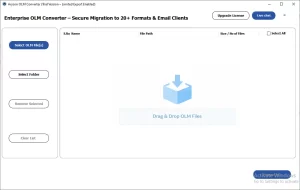
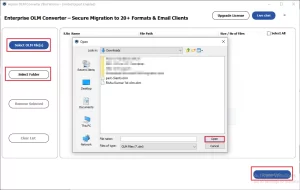
- After that, open the folder where you have saved the OLM data >>Open >> Proceed.
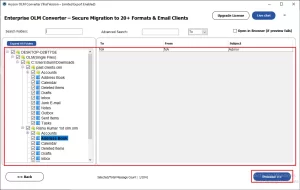
- Then, select the files from the tree hierarchy to migrate >> Proceed.
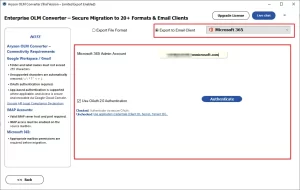
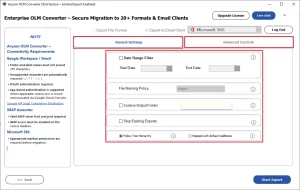
- Thereafter, choose the Microsoft 365 data from the dropdown & enter credentials.
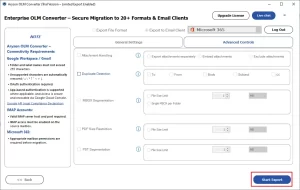
- Use the advanced filters of the software if needed.
- Lastly, press the Start Export button to import OLM files to Office 365.
Comparison of Manual Method & Professional Software
|
Feature |
Manual Method |
Professional Software |
|
Advanced Filters |
Not Available |
Provides advanced filter options |
|
Supported File Formats |
Only Outlook import |
Converts to PST, PDF, EML, etc. |
|
Migration Speed |
Slow for large mailboxes |
Fast and efficient |
|
Direct Office 365 Migration |
Indirect manual transfer |
Direct migrations to Office 365 |
|
Bulk OLM Migration |
Not Supported |
Supports Bulk Migration |
Conclusion
In this guide, we covered all the aspects of why users must import OLM to Office 365. Along with that, we also discussed the manual and professional methods to accomplish the migration process. However, users can choose the best methods that suit their technical knowledge. While the manual method is suitable for a small number of files, to export data. It is advised to use professional software if you want to move data in bulk.
Frequently Asked Question
Q.1. Can I migrate OLM to Office 365 without Outlook for Mac?
Ans. Yes, you can use a professional OLM Converter tool to migrate OLM files without Outlook for Mac.
Q.2. Is it possible to convert OLM to Office 365 directly?
Ans. Yes, advanced OLM migration tools allow direct import of OLM data into Office 365 accounts.
Q.3. Can I import multiple OLM files to Office 365 at once?
Ans. Yes, many professional tools support bulk migration of multiple OLM files simultaneously.
Q.4. Can I migrate OLM emails to Office 365 with attachments?
Ans. Yes, OLM emails can be migrated to Office 365 along with their attachments and mailbox properties.
About The Author:

Eva Shirley is a skilled technical content writer with expertise in creating engaging and informative content. With over 5 years of experience and a passion for writing, she has solved many users' queries by providing quality content.
Related Post