-
Written By Eva Shirley
-
Approved By Shivam Rathore
-
Updated on May 26th, 2026
-
Reading Time: 4 minutes
Open OLM File in Zoho Mail – Easy & Quick Steps

Summary: There are numerous Mac Outlook users who find themselves stuck with OLM files while switching to Zoho Mail. This is because OLM files cannot be accessed via Zoho Mail, while organisations switch to Zoho Mail for its clean interface and business-friendly features. As a result, they often look for a reliable way to open OLM file in Zoho Mail. If you are also looking for the same, read this blog till the end to learn the use of Aryson OLM file Converter and get more insights into the entire process.
Why Import OLM to Zoho Mail?
- Users can access their OLM files from anywhere via Zoho Mail’s cloud platform.
- They can avoid the data loss caused by local system crashes.
- Moreover, Zoho Mail keeps the OLM data safe via its cloud storage.
- Additionally, users can manage their emails better in Zoho Mail’s clean interface.
- Also, the Workplace features of Zoho make collaboration easier.
How to Open OLM File into Zoho Mail?
Listed below are the two most reliable methods discussed in this blog in detail.
- The Automated Software
- Using Microsoft Outlook
Method 1: Most Recommended Software to Open OLM File in Zoho Mail
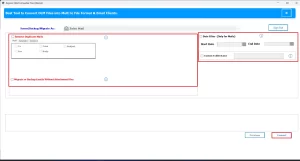
Aryson OLM file Converter Tool is one of the most widely used software to migrate OLM files to Zoho Mail. The primary aim of this utility is to provide the user with complete data integrity and security. Moreover, the advanced search functionality and J-table allow users to preview their selection. Additionally, the same software can be used to Import OLM to Thunderbird, Yahoo Mail, Yandex Mail, etc, email clients. Also, the built-in features of the software, such as Skip previous migrations, Remove Duplicate Mails, Date Range filter, etc, simplify the entire migration.
Step-Wise Tutorial to Import OLM File to Zoho Mail
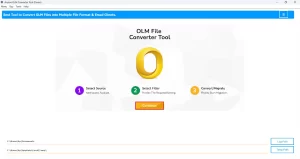
- First, install the Aryson OLM file Converter Tool on your system >> run it as administrator.
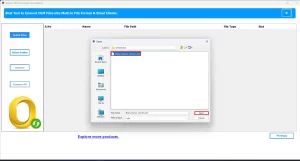
- Then, add single or multiple OLM files to the software as per your needs >> Next.
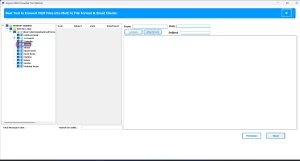
- Now, preview the selected data and attachments before the import >> Next.
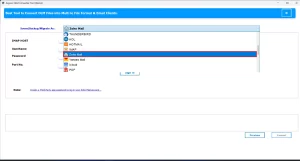
- Then, select Zoho Mail as the destination email client.
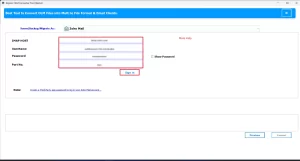
- Provide the valid Zoho Mail credentials to log in to the account.
- Next, use the built-in features of the software >> click on the Convert button.
Important Note: This automated software works well and can perform the entire import within a few clicks. But, in case you prefer to use a hands-on approach and have MS Outlook already installed on your system, refer to the upcoming section.
Keep in Mind: Remember, this alternate method would require you to install Outlook, acquire great technical skills, and it doesn’t support bulk migration.
Method 2: Open OLM File in Zoho Mail Manually
There is no direct option provided by Zoho Mail to import OLM data. Therefore, here we will use MS Outlook as the intermediary email client. Follow the steps below carefully to proceed further.
Stage 1: Set up Your Zoho Mail Account in Mac Outlook
- To begin, install Mac Outlook on your system & open it.
- After that, click on Outlook in the Menu bar >> select Preferences.
- Choose Accounts & click the Add (+) icon to add a new account.
- Enter your Zoho Mail credentials and choose IMAP as the email server type.
- Specify the following details for the Zoho Mail server
- Next, you need to select the Add Account button to complete the setup.
|
Incoming Server: |
imap.zoho.com |
|
Port: |
993 |
|
Encryption: |
SSL |
|
Outgoing Server: |
smtp.zoho.com |
|
Port: |
465 |
|
Encryption: |
SSL |
Stage 2: Export OLM File to Zoho Mail
After configuring Zoho Mail in Outlook, you can now move the OLM data.
- You can use the Import option to import your OLM data into Mac Outlook.
- After the import, find the OLM mailbox folders in MS Outlook.
- Now, simply drag and drop your required emails/folders into Zoho Mail account.
- Outlook will automatically sync data with Zoho Mail.
- Now, all your desired OLM data will migrate OLM to Zoho Mail
Conclusion
In this write-up, we discussed two most effective methods to open OLM file in Zoho Mail. The manual method worked well for a small amount of data. Whereas the automated software provided the user with various built-in features to enhance efficiency and simplify the import process. Still, if users get stuck at any step of the process, our tech support team is available 24*7 to assist.
Frequently Asked Question
Q.1. Is it possible to migrate OLM to Zoho Mail for free?
Ans- Yes, the Aryson OLM file Converter comes in a demo version that can migrate upto 50 emails/folder for free.
Q.2. How do I convert OLM file for Zoho Mail?
Ans- You can convert OLM file for Zoho Mail using the Aryson OLM Converter Tool. Steps to follow are:
1. Download and open the Aryson OLM Converter Tool
2. Add the OLM file(s) and click Next
3. Select required folders and proceed
4. Choose Gmail as the destination
5. Log in using Gmail credentials
6. Click Convert to import OLM to Gmail
Q.3. What is the easiest way to open OLM file in Zoho Mail?
Ans- Aryson OLM Converter Tool is the easiest way to open OLM file in Zoho Mail
Q.4. Can I open large OLM files in Zoho Mail?
Ans- Yes, using the Aryson OLM Converter Tool, you can open large OLM files in Zoho Mail.
About The Author:

Eva Shirley is a skilled technical content writer with expertise in creating engaging and informative content. With over 5 years of experience and a passion for writing, she has solved many users' queries by providing quality content.
Related Post