-
Written By Vishal Kumar
-
Approved By Mithilesh Tata
-
Publish on March 10th, 2026
-
Reading Time: 4 minutes
Convert MSG to CSV file – step-by-step simple guide

Summary: Converting MSG files to CSV can be helpful when you need to organise and analyse email data in a structured format. MSG files are commonly used by Microsoft Outlook to store individual email messages, but they are not easily readable or manageable in spreadsheet applications. By converting MSG files to CSV, users can access important email details such as sender, recipient, subject, and date in a tabular format that works well with tools like Excel. In this guide, we will walk you through simple step-by-step methods to convert MSG to CSV file, along with the Aryson MSG Converter Tool for ease.
Reasons to Convert MSG to CSV
- You can open a CSV file in any spreadsheet application, like Excel or Google Sheets.
- Converting to CSV keeps email information in row-and-column-structured form.
- Moreover, the CSV format makes the transfer of data from email to database easier.
- With spreadsheet tools, users can easily sort, filter, and search for required emails.
- Furthermore, CSV files are smaller in size than MSG, which helps in storage.
Top Methods to Convert Outlook MSG to CSV
Now, let’s walk through the most appropriate method to accomplish the conversion of MSG files to CSV. These methods help you to easily convert your MSG format files into CSV.
- Professional Method
- Manual Method
Method 01: Enterprise Solution to Convert MSG to CSV File
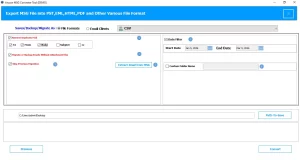
To convert bulk MSG files, use the scalable Aryson MSG Converter Tool. It is a data-free conversion process that allows users to export their MSG files into CSV and other file formats. This software is equipped with several advanced utilities that streamline the conversion process. Moreover, there is an option to save the resultant files in a specific location where users want. Instead of CSV, if you want to convert MSG to EMLX or any other format, this software is an absolute all-in-one solution. Now, follow the steps to export Outlook MSG files in CSV.
- Initially, download and launch the MSG Converter Tool on your system.
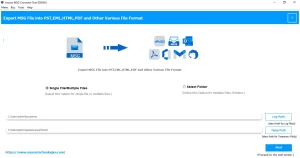
- Then, click on Select file/folder and locate the .msg files, and click Open to load.
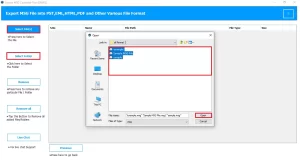
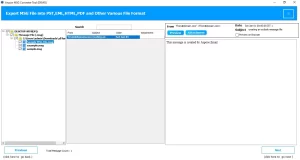
- Subsequently, you can preview the files with the attachments and tap on Next.
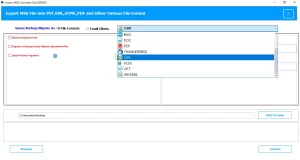
- Thereafter, you can select CSV from the file formats drop-down menu option.
- Afterward, enable the filters that are required for the selective conversion.
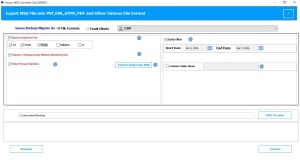
- Finally, you can save the resultant file to a specific location and click on Convert.
Advantages of this Professional Software
- Efficient software that provides multiple file formats and email clients for export.
- Moreover, it offers a preview of the complete email before the conversion.
- Keeps the original email folder structure and metadata intact during the conversion.
- No need for Outlook to convert MSG Files to CSV.
Method 02: Manual Method to Save MSG Files in CSV
If you want a solution that accomplishes the conversion of a few MSG files, then follow the manual method. This solution consists of two steps to complete the conversion. It is suggested to carefully perform the export process to avoid any errors.
Step 01: MSG files to Outlook Import
- First, you need to open your Outlook account on your system.
- Thereafter, you have to create a new folder here.
- After that, drag the MSG files from the location.
- In the end, drop them into the newly created folder to import the MSG files into Outlook.
Step 02: Use Outlook to Convert MSG to CSV
- After you import the MSG file, proceed with these steps.
- Then, you need to tap on the File tab from the top menu bar >> Open & Export.
- Next, choose Import/Export, and after that, select Export to a file >> Next.
- Consequently, you should select the Comma Separated Value (CSV) icon.
- Now, select the folder you created previously.
- Moreover, you need to browse the path to save the resultant file.
- At last, click on the Finish button to complete the conversion of MSG to CSV.
Disadvantages of the Manual Method:
- In this method, Outlook must be installed with a proper paid subscription.
- This method increases the risk of data loss and missed email formatting.
- Moreover, you need to repeat step 01 to upload multiple MSG files in Outlook.
- Furthermore, the manual method is complex and may not produce accurate results.
In Conclusion
In this guide, we have discussed the two most reliable methods that convert MSG to CSV file. You can choose any method for the conversion, but make sure to always choose the right method. The manual method requires a paid Outlook subscription, which might not be affordable for some users. Therefore, it is recommended to use professional software for hassle-free conversion.
Frequently Asked Question
Q.1. How can I convert MSG to CSV file easily?
Ans. You can easily convert MSG files to CSV by using the MSG Converter Tool. This professional software provides a simple and user-friendly interface that allows users to export MSG files into CSV format.
Q.2. How do I convert multiple MSG files to one CSV file?
Ans. To convert multiple MSG files to a single CSV file, you can use the batch conversion feature of the Aryson MSG Converter Tool. It allows the user to add multiple MSG files and convert them together in one process.
Q.3. How do I maintain data integrity during MSG to CSV conversion?
Ans. Yes, you can maintain data integrity using the Aryson MSG Converter Tool that ensures accurate MSG to CSV conversion.
Q.4. Which professional software is recommended to convert MSG to CSV file?
Ans. The most recommended software is the Aryson MSG file Converter Tool. It provides advanced utility to convert MSG files into multiple formats.
About The Author:

Vishal Kumar is an experienced technical content writer with a passion for simplifying complex topics. Specializing in email and cloud migration solutions, he crafts informative and reader-friendly content that empowers users to understand and manage their digital tools more effectively. His insights have been featured on several respected tech platforms, earning the trust of a wide audience.
Related Post