-
Written By Eva Shirley
-
Approved By Shivam Rathore
-
Updated on May 26th, 2026
-
Reading Time: 4 minutes
Convert MSG File to PDF Instantly – Fast & Easy way

Summary: In today’s time, many users struggle to open and share MSG emails outside Microsoft Outlook. This is because this format is not supported across different devices, and accessibility becomes difficult. Converting an MSG file to PDF is the best solution that allows users to securely view, share, and preserve email content. In this blog, we cover the methods that will convert MSG file to PDF, along with the Aryson MSG file Converter Tool, in a secure and hassle-free way.
When should you convert MSG to PDF?
MSG files store individual email messages that Outlook uses. Therefore, users need to change MSG file to PDF for several important reasons:
- PDF is a universal file format that can be easily accessed on any device.
- This format allows read-only access and does not permit editing.
- Moreover, it is safe to share documents in PDF, as you can add a password to them.
- Along with that, PDFs are ideal for compiling emails into a single document.
- Additionally, PDFs take up less space than the MSG files and reduce clutter.
Best Methods to Convert MSG File to PDF
Now, we will walk through the most appropriate solution that will easily export MSG to PDF.
- Manual Methods using Outlook
- Manual Method using MS Word
- Professional MSG Converter Tool
Method 01: Manual Way to Save MSG as PDF
Here, we will discuss the two manual solutions that help you to convert MSG files to PDF. For small file conversion, you can use any of these methods:
Solution 01: Use Microsoft Outlook
This is a simple way to save your MSG files as PDFs.
- To start the process, open MS Outlook on your system.
- After that, double-click on the MSG file to open it.
- Then click File >> Print, select Microsoft as the printer, and print the PDF.
- Next, choose the destination location and click on Save.
In this way, you can save your MSG files as a PDF.
Solution 02: Use Microsoft Word
- For this, start with open your MSG files in Outlook.
- Then, copy the email content (Ctrl+A, then Ctrl+C).
- Afterward, open MS Word on your system and paste the content (Ctrl+V).
- Next, click on File >> Save As and select PDF as a file format.
- At last, click on Save to convert the MSG files to PDF.
Disadvantages of these manual methods:
- In this method, Outlook is required for the conversion.
- There is no option for bulk conversion of MSG files.
- Moreover, the attachments are not saved separately in PDF.
- In addition, for multiple files, it is a time-consuming process.
Method 02: Automated Software to Convert Outlook MSG to PDF
As the above methods come with several limitations, you can use the MSG Converter Tool. Along with that, this is reliable software for bulk conversion of multiple MSG files. It keeps the original email formatting intact and preserves the folder hierarchy throughout the process. In addition, it offers advanced features that help you with selective data conversion and eliminate duplicate emails. Also, if you want to convert emails to another email format instead of PDF, then you can also read our detailed guide to convert MSG to EML.
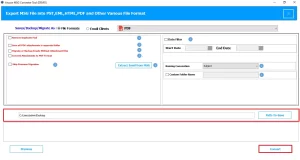
Now, follow the steps to begin the conversion process:
- First, launch the MSG Converter Tool on your system.
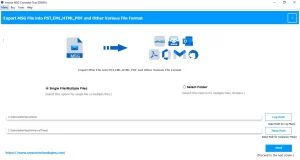
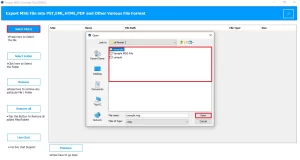
- After that, select the File/Format and click on Open to load .msg files.
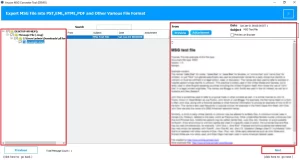
- Then, view the loaded folder on your computer with attachments and press Next.
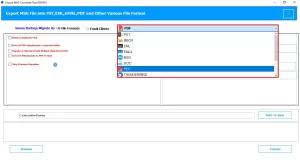
- Thereafter, select the file format from the drop-down as PDF.
- Next, for selective data conversion, enable the required features as per your needs.
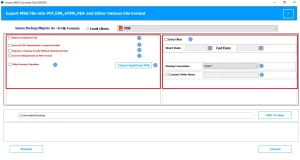
- Lastly, define the path to save the resultant file and click Convert to start the process.
Exclusive Features to Prevent Disaster
|
Bulk Migration Manual Problem: Exporting 50GB files manually is not possible; it takes 2 or 3 days for conversion. Solution: Use the MSG Converter Tool, which will convert all your MSG files to PDF in bulk. |
Advanced Preview Option Manual Problem: No preview is available in the manual method to view your files before conversion. Solution: You can use this software, which will allow you to preview your emails before migration. |
|
Maintain Attachments Manual Problem: attachments are not saved separately in the manual method. Solution: Automated software provides a feature to save email attachments separately. |
Assign Date Filter Manual Problem: Selective date migration is not possible in the manual method. Solution: Software has advanced features to assign a start and end date for selective migration. |
Important Note: If you face any difficulties while using the software, you can connect to the technical team via chat or remotely; they can help you.
In Closing
To sum up, we discussed the important scenarios to convert MSG file to PDF. Always choose the right method for the conversion of your files to prevent data loss. The manual method is suitable for small file conversion. Therefore, we recommended using the automated software if you need to convert data in bulk.
Frequently Asked Question
Q1: How do I convert MSG to PDF without Outlook?
Ans. You can convert MSG to PDF without Outlook by using a professional MSG Converter Tool that works independently and accurately preserves email content, formatting, and metadata during the conversion process.
Q2: Can I export MSG to PDF with attachments?
Ans. Yes, the MSG Converter tool allows you to export MSG files to PDF along with attachments, maintaining original formatting and other important details without any data loss.
Q3: Is there a way to batch Change MSG file to PDF?
Ans. Yes, this software supports batch conversion, enabling you to convert multiple MSG files into PDF format simultaneously while ensuring accurate and consistent output results.
Q4: How do I save Outlook MSG as a PDF?
Ans. Therefore, to save Outlook MSG as PDF, add the MSG files to the tool, select PDF as the output format, choose a destination folder, and click Convert to complete the process.
About The Author:

Eva Shirley is a skilled technical content writer with expertise in creating engaging and informative content. With over 5 years of experience and a passion for writing, she has solved many users' queries by providing quality content.
Related Post