-
Written By Eva Shirley
-
Approved By Shivam Rathore
-
Updated on May 26th, 2026
-
Reading Time: 4 minutes
How to Import MSG Files into Gmail – Complete Full Guide

Summary: Are you searching for a reliable way to import your MSG files into Gmail? Most of the enterprises face issues when they move their email data from Outlook or other Windows-based clients to Gmail, particularly when they handle a large number of emails with attachments & nested folders. The process can be difficult, as Gmail does not directly support MSG files & causes incomplete transfers or missing content. In this blog, we will walk through proven approaches to import MSG files into Gmail, which includes the Aryson MSG File Converter Tool to simplify the process.
Why Do Enterprises Import MSG files to Gmail?
The process to transfer your MSG files to Gmail helps you to improve accessibility & collaboration for your emails. Now we will discuss the other key reasons:
- Users can keep all emails in a single Gmail account.
- You can easily access messages from any device via the cloud.
- Moreover, Gmail retains attachments and original formatting.
- Gmail helps you to preserve sender, recipient & timestamp details.
- Likewise, you can simplify the process of sharing & teamwork across platforms.
Top Approaches to Import MSG Files into Gmail
When your plan is to transfer your MSG files into Gmail, it is important to understand the available methods for a smooth and accurate migration. The choice of method depends on factors such as data volume and the need to maintain email integrity:
- Manual Method
- Automated Solution
Approach 01: Manual Method to Open MSG files in Gmail
It is important to understand the available methods for an accurate migration. In addition, the choice of method depends on factors such as data volume and the need to maintain email integrity.
Steps to Transfer MSG files to Gmail
- To begin, configure your Gmail account in Outlook through IMAP settings.
- After that, you can create a new folder in Outlook to store MSG files.
- Now, you have to select the required MSG files from your system.
- Then, drag & drop the selected MSG files into the created Outlook folder.
- At last, wait for synchronization & verify the emails in your Gmail account.
Limitations of Manual Method
- There should be proper setup of Outlook and IMAP configuration.
- This method can take more time for your large data sets.
- Moreover, it has no direct MSG import option in Gmail.
- This approach may lead to data inconsistencies.
- Likewise, there is risk of missing attachments.
Approach 02: Automated Solution to Import MSG files into Gmail
The Aryson MSG Converter Tool is a direct and highly recommended way in order to import your MSG files into Gmail without relying on any complex manual configurations. Moreover, it supports efficient bulk data management and retains all email details. Subsequently, it provides a simple interface along with powerful features which allow both technical and non-technical users to perform migration efficiently. Likewise, to import MSG to Office 365 account, refer to our comprehensive guide that helps you in smooth data transfer.
Quick Steps to Import MSG to Gmail:
- Download & launch the Aryson MSG Converter Tool on your computer.
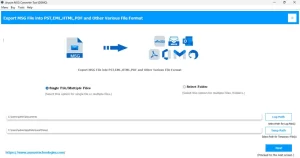
- After that, you have to upload the MSG files to transfer into your Gmail.
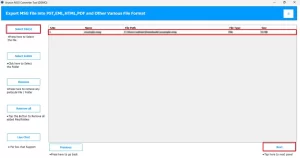
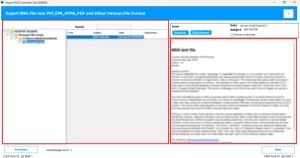
- Now, you can review the loaded files to confirm the correct data is selected.
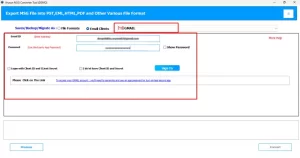
- Choose Gmail as the target platform >> provide your Gmail login details.
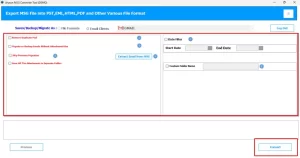
- At last, apply filters if required >> press Convert to upload MSG in Gmail.
End Note
In the above blog we have outlined the effective ways to import MSG files into Gmail with accuracy and ease. While the manual method helps you in your limited data, it requires extra time and careful handling to avoid any inconsistencies. Besides, the above-discussed solution delivers a reliable and structured solution that can keep your email properties intact. Therefore, you can opt for the appropriate method that depends on your requirements, which provides a smooth and error-free migration.
Frequently Asked Questions
Q.1. Is it safe to use third-party tools for MSG to Gmail migration?
Ans: Yes, using a trusted solution like the Aryson MSG Converter Tool is safe, as it ensures secure processing while maintaining email content, attachments, and metadata without alteration.
Q.2. How do I migrate multiple MSG files to Gmail at once?
Ans: You can migrate multiple MSG files in a single process by using the Aryson MSG Converter Tool, which supports bulk file selection and allows direct transfer to Gmail without manual repetition.
Q.3. What are the limitations of importing MSG files into Gmail?
Ans: Gmail does not support MSG files directly, and manual methods may be time-consuming, lack accuracy, and do not provide options for bulk handling or advanced filtering.
Q.4. Why do MSG files not open in Gmail directly?
Ans: MSG files are created by Microsoft Outlook and are not compatible with Gmail’s format, which is why a conversion or migration process is required before accessing them in Gmail.
About The Author:

Eva Shirley is a skilled technical content writer with expertise in creating engaging and informative content. With over 5 years of experience and a passion for writing, she has solved many users' queries by providing quality content.
Related Post