-
Written By Eva Shirley
-
Approved By Mithilesh Tata
-
Publish on December 16th, 2025
-
Reading Time: 6 minutes
How to Convert OLM File to PST Easily Without Data Loss

Summary: Do you want to convert your OLM file data into PST to access it on Windows? Here we are to help you convert the emails with various methods. Although the OLM files only work for Mac Outlook. Hence, it is not possible to access those files in Windows directly. To access the OLM files in Windows, you can go through this blog to easily convert OLM file to PST. Along with that, you can use the Aryson OLM to PST Converter Tool for effortless conversion.
Why is it Necessary to Convert OLM to PST?
An OLM (Outlook for Mac Data File) is an archived file used by Outlook to store data like calendar, contacts, and emails. These are specially designed for the Mac and do not directly open in Windows. Whereas, PST (Personal Storage Table) is compatible with all operating systems, such as Mac/Windows/Linux. In PST, it stores the data locally on the computer. Some reliable factors are mentioned to convert Outlook OLM to PST below:
- This process is ideal for archiving the old emails and creating a backup of the data.
- Moreover, it will allow you to create a subfolder and organize the data in your inbox.
- Along with that, you can provide the password to prevent unauthorised access.
- Also, Outlook contains the deleted items, which are useful at the time of data recovery.
How can we Convert OLM files to PST
There are many ways to convert the email files. In this upcoming section, we will discuss the many ways to convert the files. First, we will go through the manual solution. If you find it difficult, then proceed with the automated solution and accomplish the steps to export OLM to PST within a few clicks.
Method 01: Manual Method to Convert OLM File to PST
There are many ways to convert the OLM files to PST. Here, we discussed a few of them through which you can convert the emails. Below are the solutions discussed. From the given methods, you can opt for any one as per your need.
Step 01: Configure the Mac Outlook in Windows
- First, open Mac Outlook and go to the File.
- Then, click on the Add Account & add a Mac Outlook account to sync all the emails to the Windows Outlook.
- Now, get back to the File action and double-check the Account setting option.
- Proceed further, go to the email section, and make the added account the default value.
- It’s time to restart Outlook and go to the file section.
- Choose the Open and Import, and click Import/Export.
- Further, select the Export to a file in the Import Export Wizard page and click Next.
- Then, click the Outlook PST file and hit the Next button.
- After that, select the folder from the preview and click Next.
- At last, browse the location to save the file after export, select the filters for duplicates, and click on the Finish button.
Step 02: Using Drag and drop
- Next, in Mac Outlook, select the OLM file you want to convert.
- Create a new folder on the desktop and drop the email into this folder. It will save the files to email.
- Now, copy these emails into the external drive and share them with Windows.
- Then, Open Outlook in Windows and create a new folder.
- Finally, drag and drop copied emails to the Outlook folder. Use the Outlook Import/Export built-in utility again to export email into a PST.
Step 03: With the Help of a Google Account
- Again, open your Gmail Account, go to Settings, then All Settings.
- Tap on Forwarding and POP/IMAP and select Enable IMAP Option, and click on the Save Changes option.
- Next, configure the Gmail account for the Mac and wait to sync Outlook data with the Gmail server.
- In your Gmail Account associated with Outlook, create a new folder.
- After that, select the desired folder to convert and click on the Copy folder option.
- Further, find the Create folder option in Gmail and click on the Copy option.
- Now, wait to complete the syncing with Outlook, and in the account settings option, make it the default one.
- Lastly, use the Import/Export utility to export data into PST format.
Outcomes of the Manual Method to Convert OLM to PST
- However, it is a confusing process, not helpful for non-technical users.
- Moreover, the process is very lengthy and time-consuming.
- Also, this process does not maintain data integrity and confidentiality.
Automated Method to Convert OLM File to PST
For the conversion of your .olm data in a faster way, you can use the Aryson OLM to PST Converter Tool. This tool is designed to minimize the effort and provide additional filters to export specific data as per the requirement. Also, you should make sure to convert all the files in less time. The process to convert OLM to PST is as follows:
- Initiate the download of the Aryson OLM to PST Converter tool.
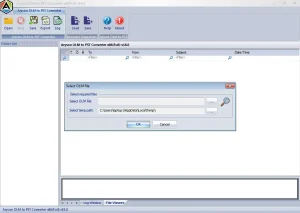
- Then, click the Open button and select the OLM file from the system.
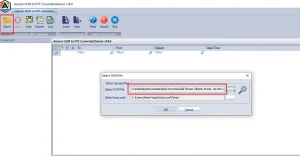
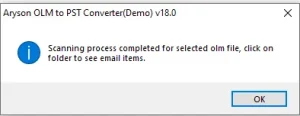
- After selecting the file, the software will start the scanning process.
- Now, you can preview the selected OLM file with attachments.
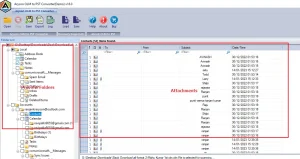
- Further, select the recovered OLM file and select the Path to save the files.
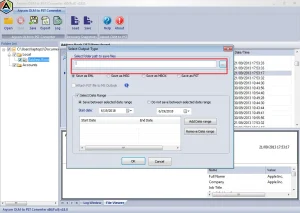
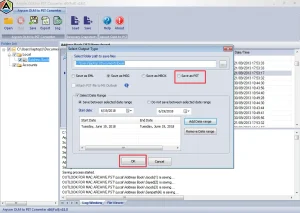
- Finally, select the Save as PST file format and hit the Ok button to start the conversion process.
Key Benefits of OLM to PST Conversion
There are many scenarios to transfer OLM to PST using the converter tool, and some features are mentioned below:
- When you initiate the process, it helps to convert multiple files in bulk.
- Moreover, it has a Date Filter option for specific period time data conversion.
- Along with that, you can select the path to save the files after export.
- Moreover, using this tool will save you time and effort.
- Most importantly, it has various formats like EML, MSG, MBOX, and PST to save files.
- Additionally, it will work with MS Outlook 2007, 2010, 2011, 2013, 2016, and 2019.
Conclusion
As per the above observation, we have discussed the two approaches that will help to convert OLM file to PST. Using the manual approach takes time and effort and has a drawback as well. On the other hand, an automated tool will minimize the time and effort and provide the bulk conversion of multiple files. Meanwhile, the demo version will show the preview of the folders to analyse the data before the initiation of the conversion.
Frequently Asked Questions
Q.1 Can I convert OLM to PST without Outlook?
Ans. Yes, you can convert OLM to PST without Outlook using the OLM Converter tool, which does not require Outlook access to convert the files.
Q.2 What is the best way to convert an OLM file to PST?
Ans. Using the Aryson OLM to PST Converter, you can easily transfer all the files in a minimum time with less effort.
Q.3 Can I transfer OLM emails to Outlook 2019 or Outlook 365?
Ans. Yes, because the OLM Converter tool supports Outlook 2019 or Outlook 365, you can transfer the emails from OLM to PST format.
Q.4 Can I convert Outlook OLM to PST on a Mac?
Ans. Yes, this tool works on every operating system; you can effortlessly convert Outlook OLM files to PST.
About The Author:

Eva Shirley is a skilled technical content writer with expertise in creating engaging and informative content. With over 5 years of experience and a passion for writing, she has solved many users' queries by providing quality content.
Related Post